TV Remote Control for Smart TV
- 4.5
- Rating
- 500.00K
- Installs
- Free
- Price
 Analysis by App-foxy
I tried TV Remote Control for Smart TV as the sort of utility that makes sense only after the physical remote has disappeared under a sofa cushion, run out of power, or become the source of an argument over who gets to change the channel. Its purpose is straightforward: turn a compatible phone into a television remote, with volume controls and a touchpad-style area for navigating supported devices. That sounds simple, but in a shared home the real test is less about novelty and more about whether everyone can use it without creating confusion.
My overall impression is that this is a useful free tool for occasional household control, especially when several people already have phones nearby. It is listed in the Tools category and comes from iKame Applications - Begamob Global. The app has a 4.5 average from around 6.1 thousand ratings, with over 500 thousand installs, so it has clearly attracted more than just a handful of curious downloads. I would still treat those figures as a sign of interest rather than a guarantee that it will work with every television in every room.
How it feels in a shared living room
The most convincing use case is a living room where the remote is regularly passed between people. Imagine one person watching a film, another lowering the volume during a phone call, and someone else needing to pause playback while preparing food. A phone-based controller can be convenient because the device is usually close at hand, rather than hidden behind cushions or left on a different chair.
You May Also Like

 Blood Strike: 2.5 Anniversary
Blood Strike’s Loadouts Turn Every Drop Into a Tactical Gamble
A close look at Blood Strike’s custom loadouts: how fast access to signature weapons reshapes its battle royale rhythm, rewards preparation, and narrows the gap between fights.

 Pandora - Music & Podcasts
Pandora’s Music Is Easy to Start, but Harder to Recover
Pandora’s strength is its low-effort path from a seed to a station. Its weak spot is how much confidence it asks you to place in connection, setup, and quiet recovery.

 8 Ball Pool
 Is Built on Rivalries, Rematches, and Routine
A close look at the rivalries, rematches, shared routines, and unanswered safety questions that turn a quick pool match into a persistent mobile community.

 Samsung Music
’s Quiet Strength Is Playing What You Already Own
Its reach comes less from spectacle than from dependable access to a personal library. That simplicity is both the app’s strongest retention engine and its ceiling.

 AccuWeather: Weather Radar
AccuWeather Review: A Quick, Clear Forecast for Everyday Decisions
For everyday plans, the best forecast is the one you can understand quickly. AccuWeather makes rain timing, radar, and local conditions easy to act on, with a few trade-offs.

 Hill Climb Racing
Why Hill Climb Racing Still Turns Crashes Into One More Run
A tiny car, a bumpy hill and one more upgrade: Hill Climb Racing keeps resurfacing because its simple chaos makes every near-miss feel personal.
More From Our News Desk



The touchpad is particularly relevant when the television interface requires moving around menus instead of pressing only channel and volume buttons. It gives the app a more phone-like way to interact with a smart TV or another supported device. In practice, I found that this can feel more natural for browsing than repeatedly tapping small directional buttons, although the result depends heavily on how well the television responds to the connection.
There is also a social advantage: the remote does not have to remain permanently attached to one person. A household can use whichever compatible phone is available at the moment. That makes it handy in a shared space, but it also means the app should be treated as a personal tool rather than a central household account. Each person needs to understand which phone is currently controlling the television and when to stop using it.
That distinction matters during group viewing. If two people open the controller at the same time, the experience can become confusing even when both are acting in good faith. I would suggest agreeing on a simple rule: one person handles navigation, while others ask before changing volume or leaving the current program. The app does not replace basic coordination between people, and using it casually without that agreement can be more disruptive than searching for the original remote.
What the main controls are good for
The volume function is the most immediately practical part of the experience. It is useful when the television is too loud, when dialogue needs a quick adjustment, or when the physical remote is unavailable. A phone is also easier to locate if it is already in your hand. For quick changes, that convenience can outweigh the extra step of opening an app.
The touchpad is more useful for menu movement, smart-TV navigation, and selecting items than for fast channel surfing. I would not choose this kind of controller if my main habit were rapidly switching between many channels. A traditional remote has dedicated buttons that remain predictable even in the dark. The phone-based approach is better suited to people who spend more time inside app menus or streaming interfaces.
One practical tip is to open the controller before a viewing session rather than waiting until everyone is already watching. That gives you time to check whether the television reacts and prevents a small setup issue from interrupting a film. It also helps establish which phone will be used, which is especially useful when several household members share the same screen.
Setup boundaries are important
The biggest limitation is compatibility. A universal remote label may sound as though every television will respond automatically, but phone-based remote tools still depend on the television, network arrangement, and device support. I would not assume that installing the app alone is enough. Before relying on it as your only controller, test the basic functions while the original remote is still available.
That test should include power, volume, navigation, and the touchpad. If one of those behaves differently from what you expect, you can decide whether the app is suitable for backup use or only for occasional adjustments. This is a more sensible approach than discovering a connection problem after putting the physical remote away.
Households should also keep their expectations realistic about what “universal” means. A remote app can offer a common control layout, but it cannot make every television interface identical. Menu behavior, response speed, and available actions may vary between devices. The touchpad may feel smooth on one screen and less precise on another, so I would judge it by the actual television in your home rather than by the promise of a general-purpose controller.
The app is free to download, which makes testing relatively easy. It also includes in-app purchases ranging from around four dollars to around sixty dollars per item. That is worth noticing before treating it as a completely cost-free replacement. I would first determine whether the free experience covers your normal needs and only then consider any optional purchase. For a household that needs nothing beyond basic control, paying may not be necessary.
Because the listed minimum operating system is Android 7.0, owners of older Android phones should check compatibility before planning to use an unused handset as a permanent remote. On a newer phone, the more important question is whether that device is convenient to keep near the television. A technically compatible app is not especially useful if the phone is usually charging in another room.
Coordinating several people and devices
Shared-device use introduces a subtle trade-off. Giving every person the ability to control the television sounds convenient, but it can also remove the clear sense of ownership that comes with one physical remote. If a child changes the volume from across the room, or a guest opens the controller without realizing someone else is navigating, the household may blame the app for a coordination problem.
My preferred arrangement is to nominate one active controller for longer viewing sessions. Other people can keep the app installed for backup, but they should avoid opening it unless the main controller is unavailable. This approach preserves the convenience of multiple phones without turning the television into a contest between competing inputs.
There is another useful workflow for homes with visitors. The host can demonstrate the basic volume control and explain that the app is not a free-for-all remote. That small explanation prevents someone from assuming that a touchpad gesture will only affect their own phone. With shared screens, the key question is not merely whether a person can control the television, but whether everyone understands when that control is appropriate.
I would also avoid handing a phone with the controller open to a young child unless an adult is comfortable with accidental changes. The app is rated Everyone, but an age rating describes suitability of the software, not a guarantee that every household interaction will be trouble-free. A child may be perfectly capable of using the controls while still not understanding that other people are watching something or that rapid tapping can move through menus.
Age, trust, and account boundaries
For older relatives, the app can be helpful if the phone’s screen is easier to locate than a small remote with many similar buttons. The touchpad may require a little practice, though, and it is not automatically simpler for someone who prefers physical controls. I would introduce it with only the actions they need first: volume, basic navigation, and returning to the previous screen. Once those are comfortable, the rest of the layout becomes less intimidating.
For teenagers and adults, the main issue is trust rather than age. A phone remote can be used responsibly by several people, but it should not be confused with a system for managing accounts or restricting television content. It controls the viewing device; it does not establish who is allowed to use a streaming service, change a profile, or make decisions about household purchases. Those boundaries still belong to the television and the relevant services.
This is also why I would not present the app as a parental-control solution. It may help a parent adjust volume or navigate the screen, but a remote is not the same thing as supervision. If your priority is limiting content, protecting a service profile, or controlling screen time, the television’s own settings and the platform’s account tools are the better places to look.
Privacy-minded users may prefer to keep the app on a dedicated household phone rather than install it on every family member’s personal device. That is not required for ordinary use, but it creates a clearer boundary around who is expected to control the television. It also makes the arrangement easier to explain to guests: the phone near the screen is the household remote, while everyone else can leave their own device alone.
Where it beats a normal remote, and where it does not
Compared with the usual physical remote, this app wins on availability. Phones are often within reach, and a lost remote is no longer an immediate emergency if the television accepts the connection. The touchpad can also be more comfortable for navigating smart interfaces than a cluster of directional buttons, particularly for people already accustomed to swiping on a phone.
The physical remote still wins on speed, tactile feedback, and shared familiarity. You can press a button without looking, hand it to another person instantly, and continue watching without unlocking a phone. It does not compete with notifications, incoming calls, low battery warnings, or the temptation to check another app. For a household that watches television every evening, the original remote remains the least complicated option when it is working properly.
Compared with other remote-control apps, the attraction here is the combination of volume control and touchpad interaction in one general-purpose tool. That makes it more suitable for smart-TV navigation than a basic volume-only utility. However, a manufacturer-specific remote may still be the better choice when you need deeper access to a particular television’s functions or a layout that exactly matches its original controller.
I would also be cautious about using it during situations where reliability matters more than convenience. If you are presenting something to a room full of people, hosting a live event, or preparing a television for a guest who cannot troubleshoot connection issues, keep the physical remote nearby. The app is a useful alternative, not a reason to discard every other method of control.
Small habits that make the experience better
My first recommendation is to test the app from the same place where you normally sit. A controller that works beside the television may be less satisfying from across the room, and the practical value is determined by ordinary viewing distance rather than an ideal setup. Check the response before depending on it for a full evening.
Second, keep the phone’s screen clean and use deliberate touchpad movements. Swiping too quickly can make navigation feel inaccurate, especially when a television menu moves in larger steps than a phone interface. Short, controlled gestures are easier to repeat and teach to another person.
Third, decide who owns the current session. This is the most overlooked tip for shared homes. A single active phone avoids accidental commands, reduces arguments, and makes it obvious who should respond if the connection stops. The app becomes much more pleasant when the household treats it as a shared responsibility rather than an invisible power anyone can use at any moment.
Finally, keep the original remote accessible during the first few uses. That is not a criticism of the app; it is sensible preparation for any replacement controller. If the television does not react as expected, you can recover immediately instead of turning a minor experiment into a frustrating search for batteries or buttons.
Who should install it
I think this tool is a good fit for people who regularly misplace the physical remote, use a smart television mainly through menus, or want a convenient backup on a phone. It is also appealing in a shared apartment or family room where different people need occasional volume control and no single person keeps the remote nearby.
It is less suitable for someone who expects perfect compatibility with every screen, wants a full duplicate of a specialized manufacturer remote, or dislikes using a phone during television time. People who need parental restrictions, account separation, or detailed device administration should choose the television’s built-in tools instead. The app can assist with control, but it does not replace those broader functions.
The current version is 1.1.2, and the software is free to try, with optional purchases that can reach around sixty dollars per item. I would approach those purchases carefully and judge the app on the controls you actually use, not on the idea that a universal remote must replace every feature of a physical one.
My household verdict
After using it as a practical household utility, I see TV Remote Control for Smart TV as a convenient backup and a reasonable everyday controller for the right television. Its strongest qualities are immediate access from a phone, simple volume handling, and a touchpad approach that can make smart-TV menus less awkward. Those strengths matter most when the physical remote is missing or when several people already have their phones nearby.
Its limitations are just as important: compatibility needs to be tested, shared use needs a little discipline, and a phone cannot provide the tactile simplicity of a traditional remote. The Everyone age rating makes it broadly approachable, but families should still set their own rules about who controls the screen and when. I would install it, test it before an important viewing session, and keep the original remote within reach until the arrangement proves dependable.
For me, the final decision is simple. If you want a free way to turn a compatible phone into a television controller and you value menu navigation through a touchpad, it is worth trying. If your home depends on specialized buttons, strict account boundaries, or completely predictable physical controls, the standard remote or a device-specific alternative will probably serve you better. Used with clear household boundaries, this app earns its place as a practical backup rather than an overpromised replacement for everything.
FAQs for TV Remote Control for Smart TV
01What is TV Remote Control for Smart TV and how does it work?
TV Remote Control for Smart TV turns your Android or iOS device into a remote control for compatible televisions. After installing the app, you usually connect your phone and TV to the same Wi-Fi network, select the television from the available devices, and use the on-screen buttons for navigation, volume, channels, input selection, and other basic commands.
02Which smart TVs are compatible with TV Remote Control for Smart TV?
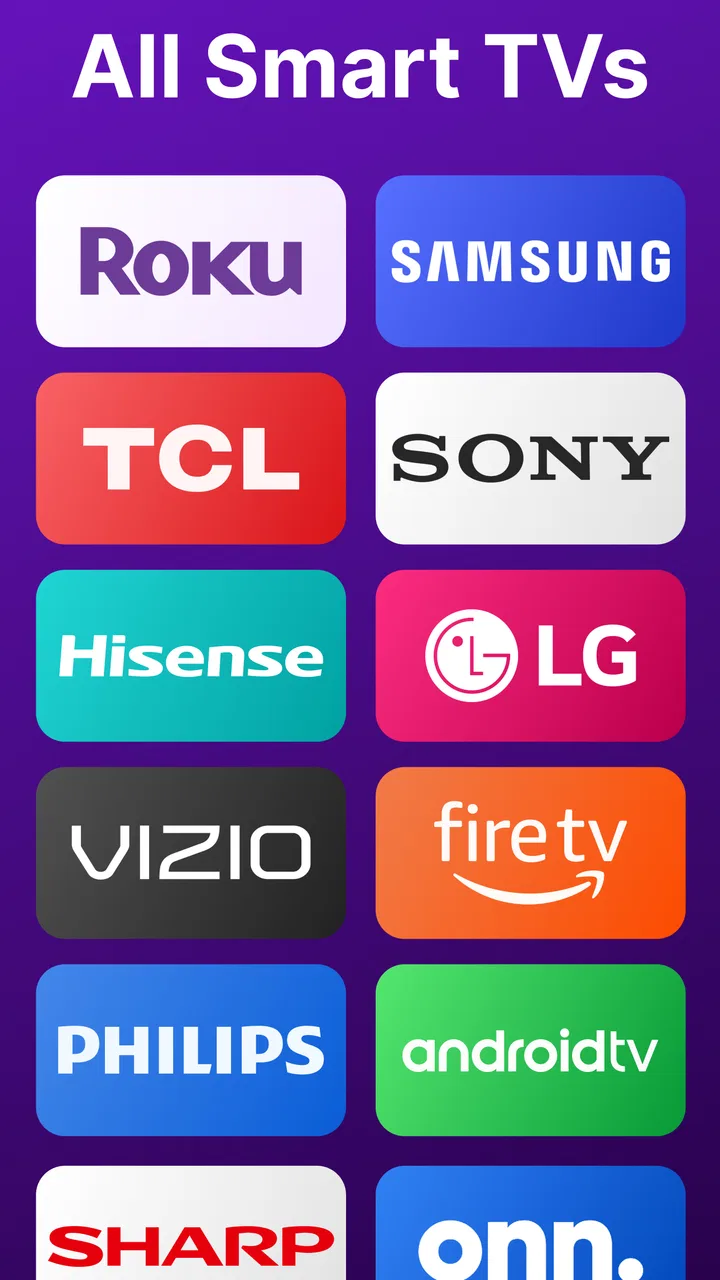
Compatibility depends on the specific version of the app and the television brand. These remote apps commonly support popular Smart TV platforms and manufacturers, but not every model is guaranteed to work. Before downloading, check the app listing for the supported brands and operating systems. Older TVs, hotel televisions, or models without network-control features may require a physical infrared remote.
03Does my phone need an infrared sensor to control the TV?
In most cases, TV Remote Control for Smart TV connects through Wi-Fi rather than infrared, so your phone does not need a built-in IR blaster. The phone and television generally must be connected to the same local network. If the app specifically offers infrared control, that feature may only work on selected Android devices equipped with compatible infrared hardware.
04Why cannot the app find or connect to my Smart TV?
The most common reason is that the phone and television are connected to different Wi-Fi networks, including separate guest or 5 GHz and 2.4 GHz networks that do not communicate properly. Confirm that both devices are online, restart the app and TV, disable VPN or network isolation settings, and accept any pairing request shown on the television screen.
05Is TV Remote Control for Smart TV free and safe to use?
The app may be free to download, although some versions include advertisements, optional subscriptions, or in-app purchases for advanced controls. Review the store description before installing and check the requested permissions carefully. A remote-control app normally needs local-network access, but it should not require unrelated permissions. Downloading from the official Google Play Store or Apple App Store is the safest option.
Pros
- Works with many popular Smart TV brands and models.
- Quick pairing over the same Wi-Fi network.
- Convenient on-screen keyboard for faster text input.
- Includes useful navigation buttons and volume controls.
- Lightweight design uses little storage and battery power.
Cons
- Requires the phone and TV to share the same Wi-Fi network.
- Some older TV models may not be supported.
- Certain features may require in-app purchases.
- Ads can interrupt use in the free version.
- Response time depends on Wi-Fi quality and network traffic.

TV Remote Control for Smart TV
Gallery